> ## Documentation Index
> Fetch the complete documentation index at: https://developer.tailwind.zone/llms.txt
> Use this file to discover all available pages before exploring further.
# whitelisting & vips
### **how to manage invite links**
* The “Manage” tab is where creators can create links, manage the whitelist, and set VIP status.
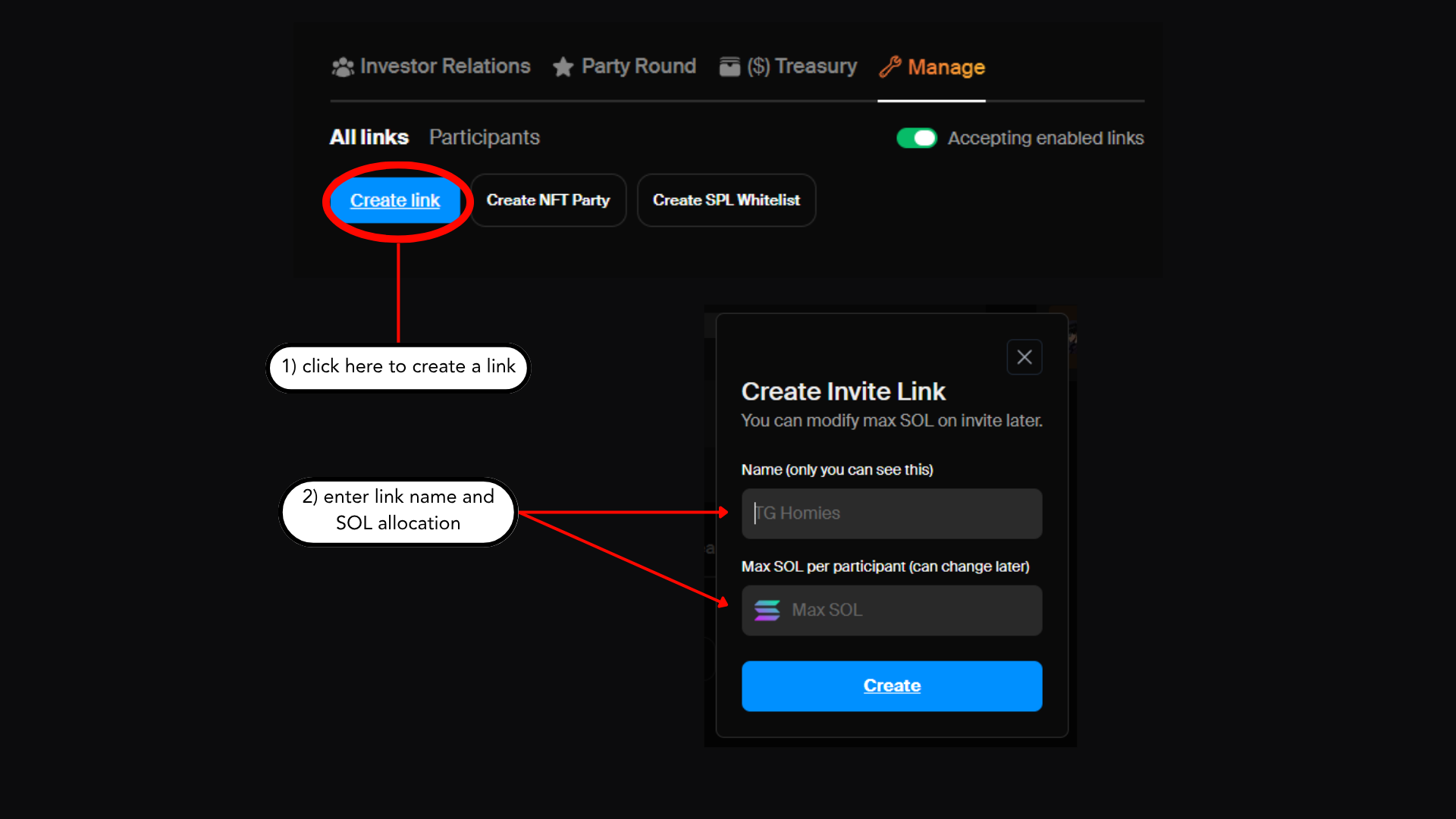
* The “Create Link” button will allow you to create an invite link for your raise.
* Here you can set the allocation and name the link.
* We recommend you use the naming feature to stay organized.
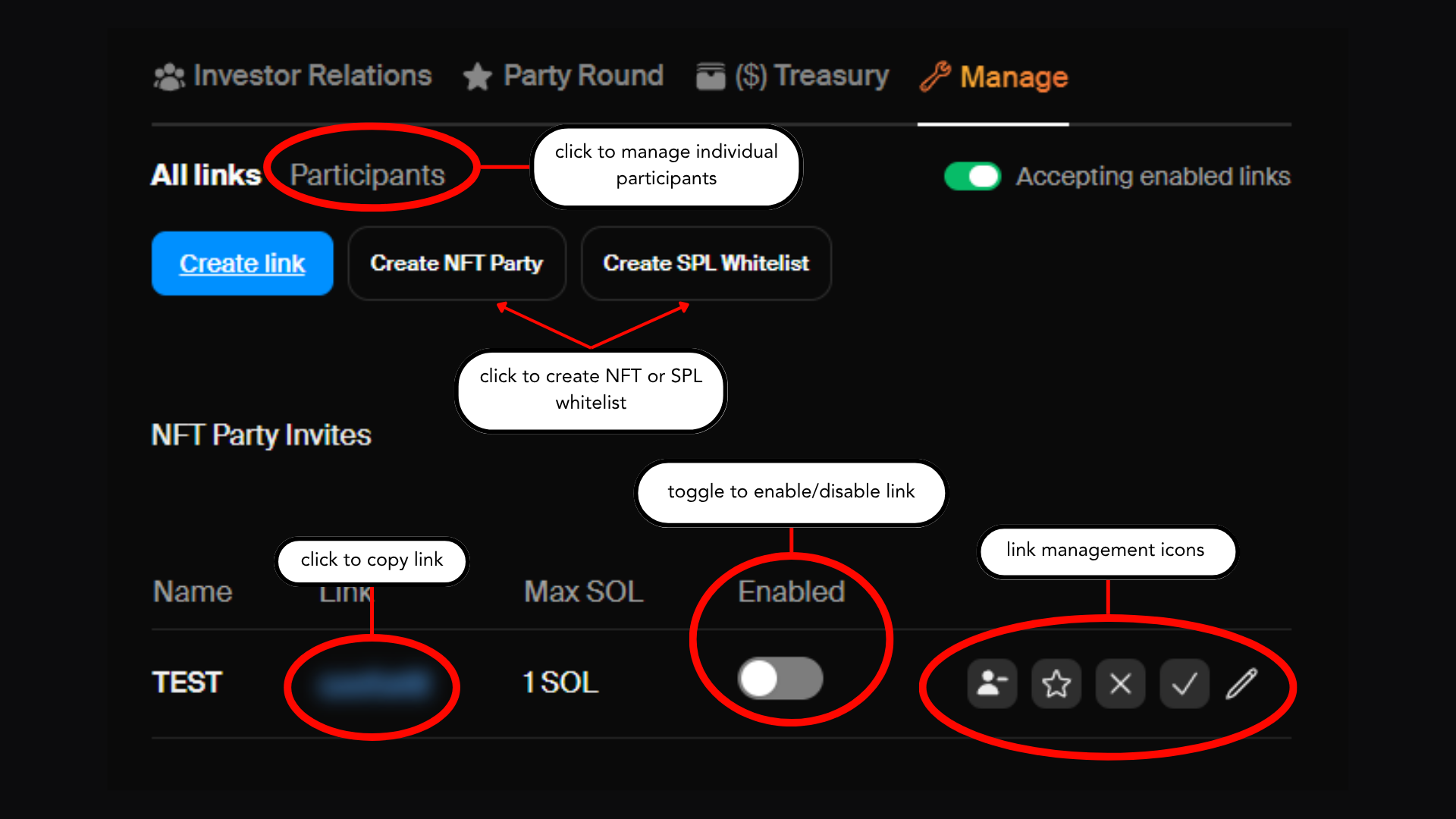
 * Clicking on the blurred out blue text next to the link name will copy it so you can share it.
* Next to the link you will see some icons:
* **Silhouette with minus sign**: this removes VIP status for everyone who has signed this link.
* **Star**: this gives VIP status to everyone who has signed this link.
* **Checkmark**: this approves everyone who has signed this link.
* **X**: this unapproves everyone who has signed this link and puts their status as “pending.”
* Clicking these icons will only change status for people who have already signed the link.
* Example: If you give Daniel a link and he signs it, then you approve the link and mark it as VIP, Daniel will be approved as a VIP. If Roy signs the link *after* this, he won’t be approved or marked as VIP until you click the icons again.
* **Pencil**: this allows you to rename the link and change the allocation.
* You can also manage approvals and VIPs individually when you click “participants.”
* This is sometimes necessary in the event that a link gets leaked to people you don’t want to participate.
* This also filters by pending, approved, and ignored & revoke.
* You can enable and disable a link at any time using the toggle under “enabled.”
* This is sometimes necessary when links get leaked.
* Clicking on the blurred out blue text next to the link name will copy it so you can share it.
* Next to the link you will see some icons:
* **Silhouette with minus sign**: this removes VIP status for everyone who has signed this link.
* **Star**: this gives VIP status to everyone who has signed this link.
* **Checkmark**: this approves everyone who has signed this link.
* **X**: this unapproves everyone who has signed this link and puts their status as “pending.”
* Clicking these icons will only change status for people who have already signed the link.
* Example: If you give Daniel a link and he signs it, then you approve the link and mark it as VIP, Daniel will be approved as a VIP. If Roy signs the link *after* this, he won’t be approved or marked as VIP until you click the icons again.
* **Pencil**: this allows you to rename the link and change the allocation.
* You can also manage approvals and VIPs individually when you click “participants.”
* This is sometimes necessary in the event that a link gets leaked to people you don’t want to participate.
* This also filters by pending, approved, and ignored & revoke.
* You can enable and disable a link at any time using the toggle under “enabled.”
* This is sometimes necessary when links get leaked.
 ## **managing nft whitelists**
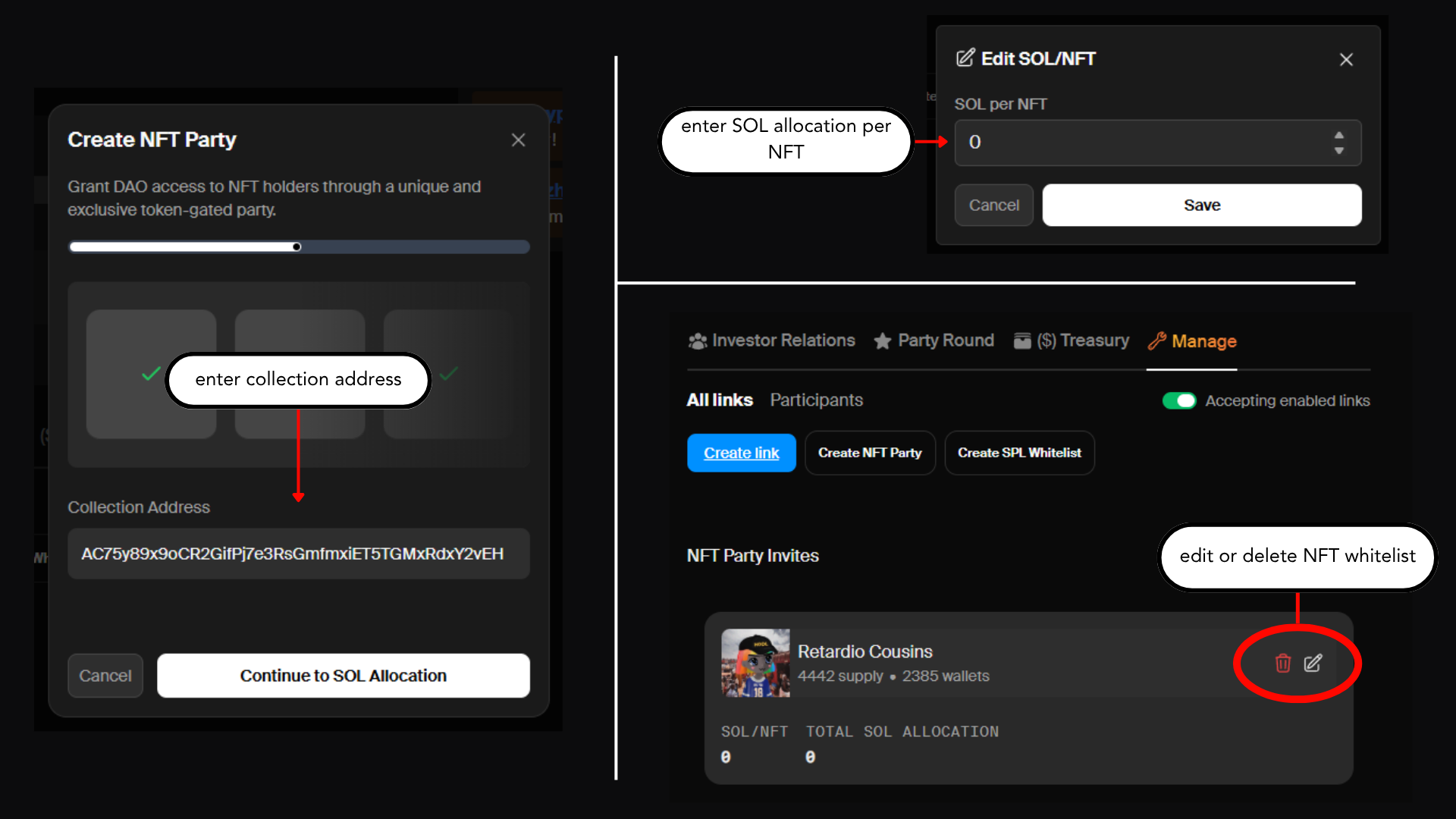
* To whitelist an NFT collection, click “Create NFT Party.”
* You will need the Collection Address. It's easy to find on Magic Eden if you inspect one of the NFTs in a collection.
* Once you click “Continue to Sol Allocation,” the WL will be created and a holder snapshot will be taken.
* There is a bug currently where you need to click “x” to continue the process. We are working on it.
* You can edit the allocation by clicking on the pencil.
* Here you can determine how much Sol is allocated per NFT.
* Participants whitelisted via a NFT collection will automatically be added to the Public Commit phase.
## **managing nft whitelists**
* To whitelist an NFT collection, click “Create NFT Party.”
* You will need the Collection Address. It's easy to find on Magic Eden if you inspect one of the NFTs in a collection.
* Once you click “Continue to Sol Allocation,” the WL will be created and a holder snapshot will be taken.
* There is a bug currently where you need to click “x” to continue the process. We are working on it.
* You can edit the allocation by clicking on the pencil.
* Here you can determine how much Sol is allocated per NFT.
* Participants whitelisted via a NFT collection will automatically be added to the Public Commit phase.
 ## **managing spl whitelists**
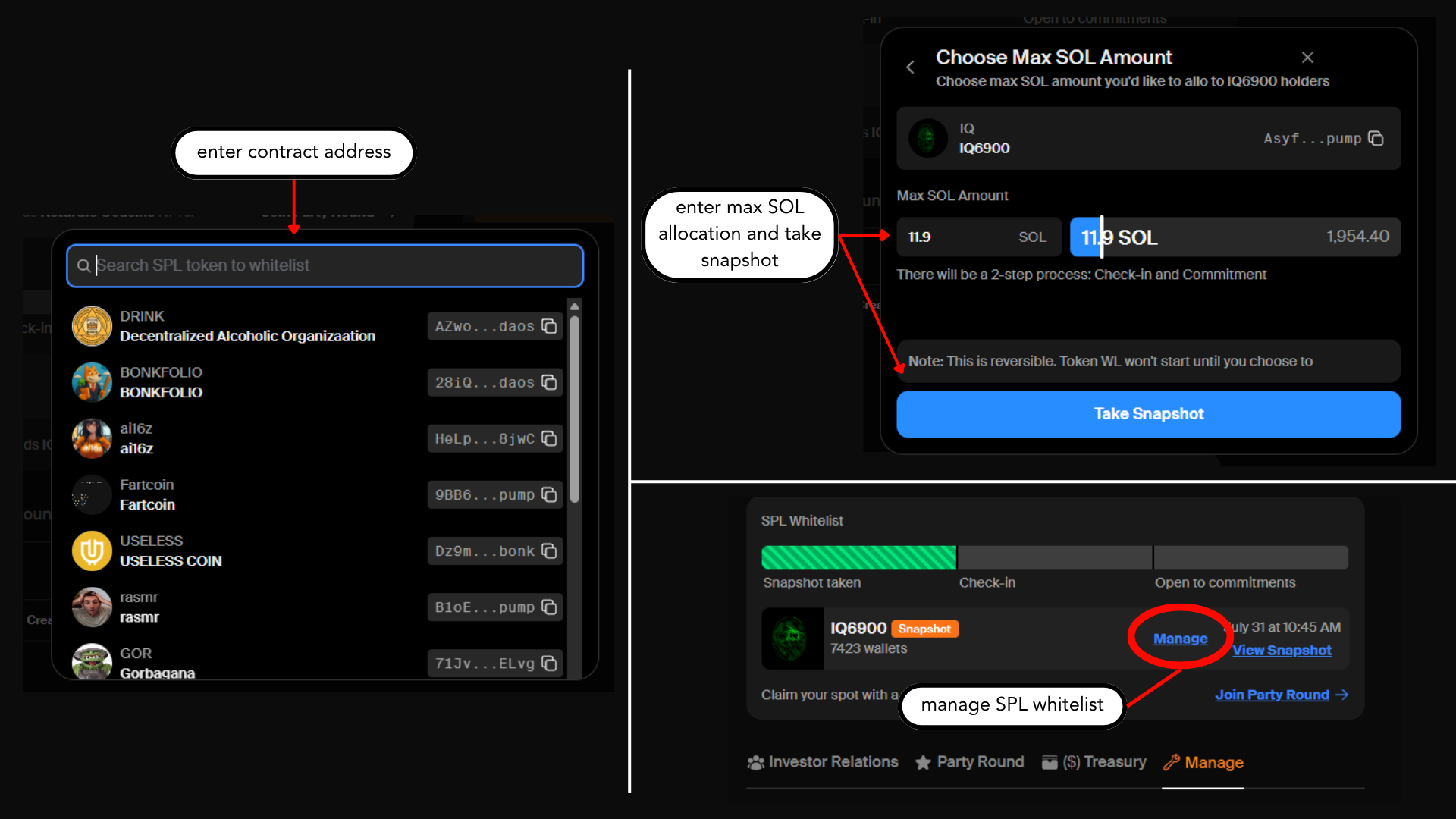
* To whitelist SPL token holders, click “Create SPL Whitelist.”
* You can search for the token by name or contract address.
* We recommend searching by CA to ensure you WL the correct token.
* You will need to determine a max sol amount allocated to holders of this token.
* Their individual allocation scales with the number of tokens they hold.
* Once you click “Take Snapshot,” a snapshot will be taken and the WL will be created.
* You will need to click “Manage” to start the check-in.
* Users need to check in if they would like to participate.
* You will then need to click “Manage” again to open commitments.
* Users can only commit if they checked in during the check-in phase.
* Participants whitelisted via a SPL token will automatically be added to the Public Commit phase.
## **managing spl whitelists**
* To whitelist SPL token holders, click “Create SPL Whitelist.”
* You can search for the token by name or contract address.
* We recommend searching by CA to ensure you WL the correct token.
* You will need to determine a max sol amount allocated to holders of this token.
* Their individual allocation scales with the number of tokens they hold.
* Once you click “Take Snapshot,” a snapshot will be taken and the WL will be created.
* You will need to click “Manage” to start the check-in.
* Users need to check in if they would like to participate.
* You will then need to click “Manage” again to open commitments.
* Users can only commit if they checked in during the check-in phase.
* Participants whitelisted via a SPL token will automatically be added to the Public Commit phase.